
Dictation
Talk in every app
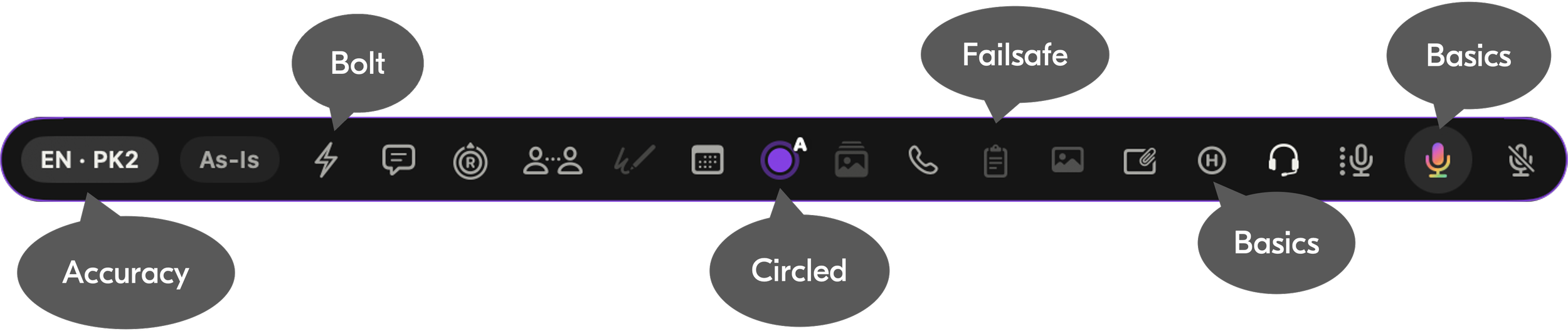
The pill sits at the bottom of your screen, and expands when “moused over”.
Basics
100+ Languages
Your Own Shortcuts including Push to Talk
Syncs across devices
Filler words out, punctuation, lists and paragraphs in
Voice Editing and Whisper Mode
4,600 special words and your snippets
Styles and coding help
Offline with full history
Your own API keys
Accuracy
Sounds Like and Excludes
Learns the words you correct
Fix All and Did you mean
Names spelled from your screen
Spoken emails and numbers
Grammar and stumble fixes
Bolt
Speak an instruction, not words to type
Rewrite, shorten or write from nothing
Works on selected or copied text
No commands to learn, just say it
See the changes before they land
No copying into ChatGPT and back

Jin Mobile

Jin4Mac
Launches Oct 23rd, 2026
Circled
Add pictures to your dictation
Mark it up as you talk with rectangles, circles, arrows, spotlights and speech bubbles
Single step process with no separate screenshot tool
Failsafe
Nothing you say is lost
Saved even if the app quits mid-sentence
Tries again if the paste fails
Waits on the pill if there’s no box to type in
One click puts it where you want it
Dictation FAQ’s
-
On the Mac, Jin4Mac types into any app with a box you can type in, like Mail, Slack, Notion, ChatGPT or your code editor. It pastes your words at your cursor, and if there is no box to type in, your words wait on the pill and in Dictation History.
On iPhone and iPad, Jin Mobile works through its own keyboard, in any app that lets you switch keyboards. The keyboard needs Full Access to reach the microphone and your Vocabulary.
Apple Watch records Thoughts, meetings and to-dos, but it does not dictate into other apps. -
Yes. On both apps, your speech is turned into text on your device.
English works straight away with Apple's built-in speech recognition, which on iPhone and iPad needs iOS 26. For the best accuracy, and for most other languages, you download a speech model once, and it runs on your device from then on.
Offline you still get filler removal, capitals, your Vocabulary, numbers, emails and web addresses, and snippets.
Steps that need a cloud model are skipped, and your words still arrive. -
Both apps write more than 100 languages, including English, 24 European languages and 22 Indian languages, with speech models that run on your device. Most need a one-time download.
Hinglish, Tanglish and Banglish written in Roman letters need your own Gemini key.
On iPhone and iPad, Jin Mobile can also translate as you dictate. -
Your voice is turned into text on your device.
We have no server, and we never receive your audio or your words.
Audio leaves your device only if you switch on a cloud speech option: ElevenLabs Scribe for a language, or Apple's online live transcription, called Better live transcription on the Mac and Better live captions on iPhone and iPad.
If you add your own Groq or Gemini key, some steps send the text of what you said to that service, under your own account. On both apps these include tidying a sentence where you corrected yourself, checking a word that could be a brand, and the clarity score in Speech Coach.
Turn on Local and nothing goes to any outside service. -
No. On both apps, dictation, Vocabulary, filler removal, snippets and History all work with no key. Paragraphs work without a key on a Mac with the Core LLM downloaded, or on an iPhone or iPad with Apple Intelligence.
A Groq or Gemini key adds Bolt, cloud Tones, sound-alike fixes and lists said in your own words.
Tones also work without a key through Apple Intelligence.
Adding a Groq or Gemini key does make dictation more accurate: it catches more sound-alike words like there and their, more sentences where you started again, and more names like Swift that look like ordinary words. -
Both apps come with 4,600+ built-in names and terms, such as brands, acronyms and medical words. You can add your own words, record or type how they sound, and list sound-alikes to leave alone.
A word you correct twice is suggested for your Vocabulary, and you decide.
On the Mac that works in any app you dictate into.
On iPhone and iPad it works in your Thoughts, because iOS does not let a keyboard read back what it typed.
On the Mac, Jin4Mac also spells names the way they appear in the window you are typing in. -
On the Mac, press your shortcut once to start and again to stop, or turn on Push to Talk and hold the key while you speak.
The shortcut starts as Option and the slash key, and you can change it.
On iPhone and iPad, tap the microphone on the Jin Mobile keyboard to start and tap the tick to finish. -
Bolt turns what you say into an instruction instead of words to type.
On the Mac it works on text you have selected or copied, and with review turned on you see what changed before it goes in.
On iPhone and iPad it works on text you have copied, and puts the answer at your cursor. With nothing selected or copied, Bolt writes something new.
It runs on your own Groq or Gemini key. -
Yes, on the Mac, with Circled.
While you talk, draw a loop around anything on your screen or highlight some text, or hold a key to add an arrow, a circle or a speech bubble.
Jin4Mac takes a picture with your mark on it and pastes it with your words.
Jin Mobile shows those pictures in Dictation History. -
Both apps save your words and audio as you speak.
If the app closes mid-sentence, it finishes the job the next time it opens and files the words in Dictation History, and nothing is pasted on its own.
On the Mac, if an app refuses the paste, Jin4Mac tries again, then holds your words on the pill so one click puts them where you want.
On iPhone and iPad, if the keyboard is gone when your words are ready, they go in the next time the Jin Mobile keyboard appears. -
Dictation History keeps 7 days to start with, and you can choose a longer time, including forever.
The setting is shared between Jin4Mac and Jin Mobile, and your history is stored on your devices and in your own iCloud. -
Jin4Mac needs a Mac with Apple silicon, running macOS 26 or later.
The optional Core LLM, which places paragraphs on your Mac, needs 16 GB of memory.
Jin Mobile needs iOS or iPadOS 17.4 or later.
Apple's built-in speech recognition and the Apple Intelligence features need iOS 26, and Apple Intelligence needs an iPhone 15 Pro or newer.
Each speech model is a few hundred megabytes to download. -
Yes. Jin4Mac on your Mac and Jin Mobile on your iPhone and iPad share everything that makes dictation yours:
- your Dictation History with its recordings,
- your Vocabulary with every Sounds Like and exclusion,
- your snippets, replacements, filler words and tones,
- your API keys, and your stats and Speech Coach petals.
Add a word on your phone and your Mac spells it right moments later.
On the same Wi-Fi your devices talk to each other directly and a change arrives in under a second.
Anywhere else it goes through your own iCloud in seconds.
There is no server of ours in the middle and nothing to sign up for: the same Apple Account, with iCloud Drive and iCloud Keychain turned on, is all it takes.
Speech models are downloaded on each device. -
Speech Coach shows how you sound when you think out loud, measured from your own dictations and Thoughts.
It draws five petals.
Pace is your words per minute while you speak.
Fillers counts um, uh and sentence openers like "so" per 100 words.
Hesitation counts long pauses per minute.
Variation is how much your voice moves in pitch.
Clarity is whether what you said had a clear point, made in order.
A fuller petal is always better. The centre gives your month a score out of 100, an orange line marks your lifetime, and each measure gets a Good, Fair or Needs work dot, so you can see what to work on.
Pace, Fillers, Hesitation and Variation are measured on your device, and only the numbers are kept, never your words.
Clarity is judged by Groq on your own key, in English.
Every language gets its own petals, and your Mac, iPhone and iPad all add to the same chart.
A take counts once it has five seconds of speech and ten words, and meetings are never scored, because they hold other people's voices.
You'll find it on the Coach tab of Stats.